
This is an old revision of the document!
Table of Contents
Overview
The BigDish Console program can be found in BigDishTools and provides a general purpose graphical user interface for controlling the antenna. Unlike `srt-py`, this program is intended to run entirely separated from control of the radio system, enabling any desired software to be simultaneously used with the SDR.
Most common operations with the antenna can be accomplished using this program. The primary exception is cases which require realtime communication between the radio and antenna controller. Currently supported features include:
- A map view for terrestrial contesting (clickable to point the antennas)
- A sky overview showing the on-sky pointing locations of the antenna
- Tracking for celestial bodies and arbitrary points in celestial coordinates
- Satellite Tracking
- Running pre-planned antenna control scrips
Running the BigDish Console
Requirements
running the console requires the following python libraries:
- radioconda/digital_rf (we recommend installing the full radioconda environment)
- astropy
- numpy
- scipy
- websockets
The entire BigDishTools repository should also be cloned to your preferred location for such things.
Launch
The pre-built console program is committed to the github so it should not need to be rebuilt locally.
Launch the console by running:
cd BigDishTools/bigdish_console #change to match you directory structure
python serve.py
This will launch the UI on http://localhost:8620, where it can be displayed in your browser of choice. If a different port is required it can be changed in the config file, or launched with the --port option flag. A path to an alternative configuration file can also be specified with the --config flag.
When you first access the UI in your browser, You will be presented with a prompt to log in to the dish control server.
Note: This program is only intended to run locally and no thought has been given to security. Please do not attempt to expose it on an externally accessible port.
Views
Sidebar and Top Bar
The most common control functions for the antenna are pinned in the sidebar and top bar of the program. These are always displayed. Buttons to go to the preprogrammed service and stow positions and to stop tracking can be found in the top right.
The sidebar contains:
- Dish telemetry and information on running pointing programs
- Pointing options in any of az/el, ra/dec, or galactic coordinates
- Object tracking options
- Tracking offset controls
- A list of other connected users
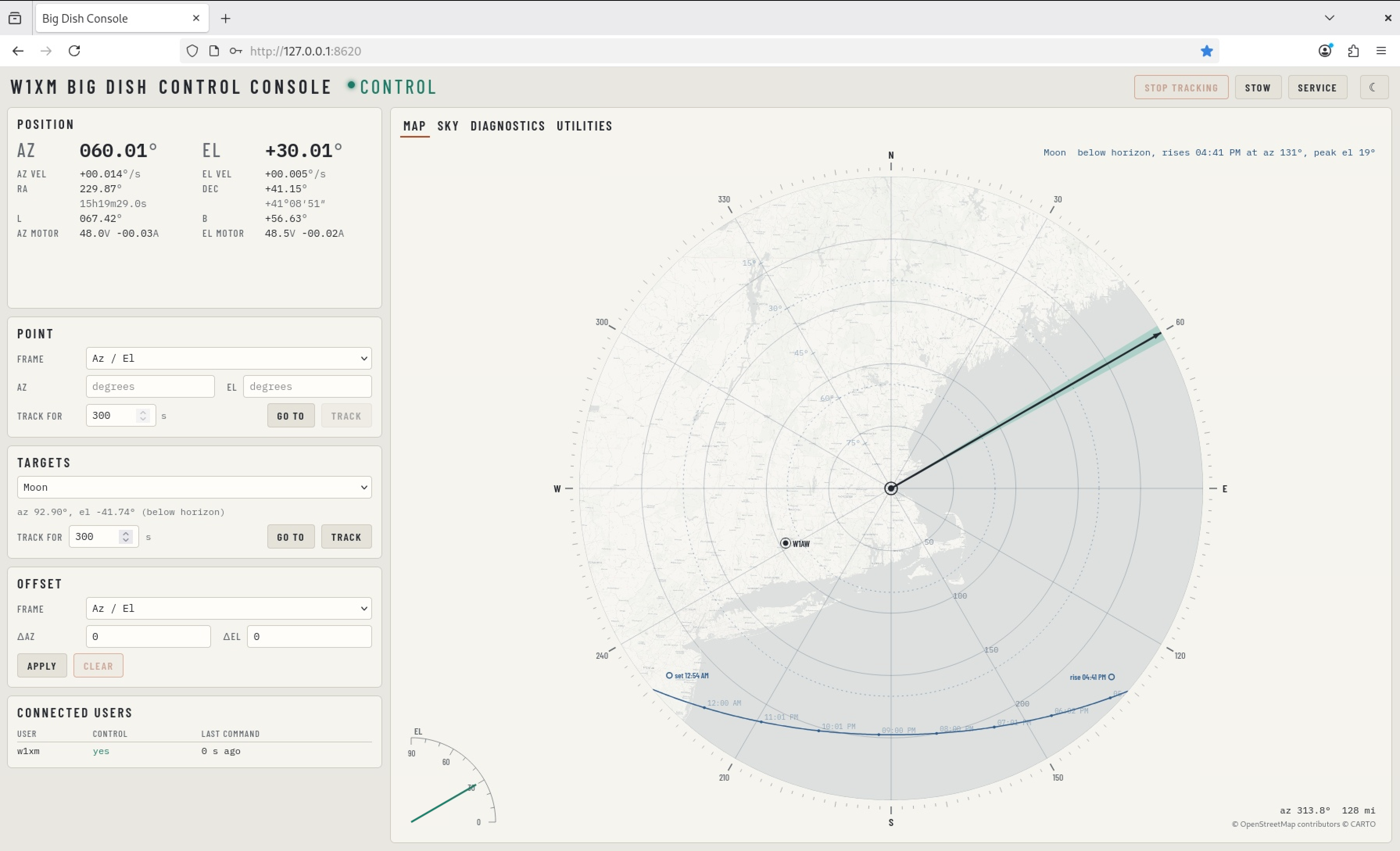
Map
The map view displays a static polar view of a 250 mile radius circle surrounding the antenna coordinates. The antenna azimuth and elevation are plotted on the map in polar coordinates, along with trajectory overlays for tracked objects.
For amateur radio contests, the locations of known ham stations with microwave capability can be plotted by adding them to the config file. This enables them to be conveniently clicked to write their correct pointing angle to the pointing command fields.
Sky
The sky tab shows the antenna pointing position against the sky overhead in several different selectable projections. Uses VirtualSky.
Diagnostics
The diagnostics tab slows plots of the dish telemetry for the past hour of program runtime. This includes the motor voltages and currents, antenna positions and velocities, and position and velocity errors.
TODO: These plots are still a little flaky as of 2026/08/22 but mostly work modulo some odd behaviors between tracks. Need to carefully clean up.
Utilities
The utilities panel is home to a number of additional tools for antenna control. These include functions to:
- Load and queue an antenna pointing command csv
- Load ephemeris files in multiple formats
- Search Celestrak for a satellite and retrieve the latest ephemeris
- Search SIMBAD for named astronomical source coordinates
- Start and stop saving antenna position logs
Advanced Capabilities
Satellite Tracking
The BigDish console is the preferred UI method for satellite tracking. Any satellite ephemeris can be added to the tracking list either via a direct lookup from Celestrak, or by a file upload through the dialog in the Utilities tab. The data fed to the control server when tracking includes both the satellite position and velocity, ensuring a smooth track with consistent convergence.
It is also possible to use Gpredict, however it has no concept of the posvel format we use and will thus produce an unstable velocity and poor pointing convergence.
Ephemeris Formats
The ephemeris file upload supports many different formats and coordinate systems. These currently include
- TLE as
.tleor.txt(legacy, please stop using these) - OMM as
.jsonor.csv - CCSDS OEM as
.oemor.asc(the format NASA used for Artemis II ephemeris) - Starlink modified ITC format
.txt(see: https://api.starlink.com/public-files/ephemerides/MANIFEST.txt, https://starlink.com/public-files/ephemerides/README.md) (TODO: need to test this one)
Source Queries
The Utilities tab also has a search function for the SIMBAD database. It should generally work for search terms like cas A, M 87, etc. I make no promises about the exact input formatting or reliability since that is dependent on them. Once a source is found it can be added to the tracking dialog.
Note: this is very very slow. That is a problem with the database, not our queries.
Queued Antenna Commands
Uploading pre-plannned antenna trajectories is also supported in the same format used by WR66_run_pointing_file.py. Files should be .csv with columns containing
UTC_Time in ISO format, coordinate system, first coordinate, second coordinate, azvel [optional], elvel [optional]
The commands in any such file are added to a non-blocking queue (e.g. other commands can still be issued to the antenna until the timestamp of the first command in the file.